iOS App Approval
We’re aware of an issue affecting a small number of customers using the mobile app on iOS (iPhone and iPad). A technical problem means that the Confirm button is not displaying. As a result, affected customers cannot confirm that they have entered their passcode, when they try to complete certain banking tasks that need Strong Customer Authentication (SCA).
The issue is linked to the Display Zoom settings on certain iOS devices.
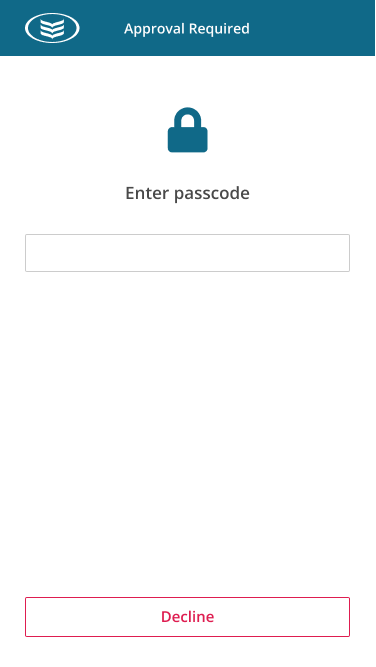
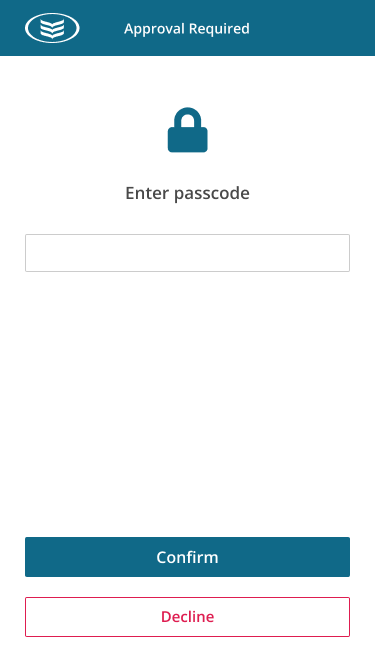
How to fix the issue
Step 1: Update your Display Zoom settings (iPhone users)
This issue may occur if your iPhone is set to use Larger Text or Display Zoom.
To fix this:
- Open Settings on your iPhone
- Tap Display & Brightness
- Select Display Zoom
- Choose Default instead of Larger Text. (You can go back to Larger Text later)
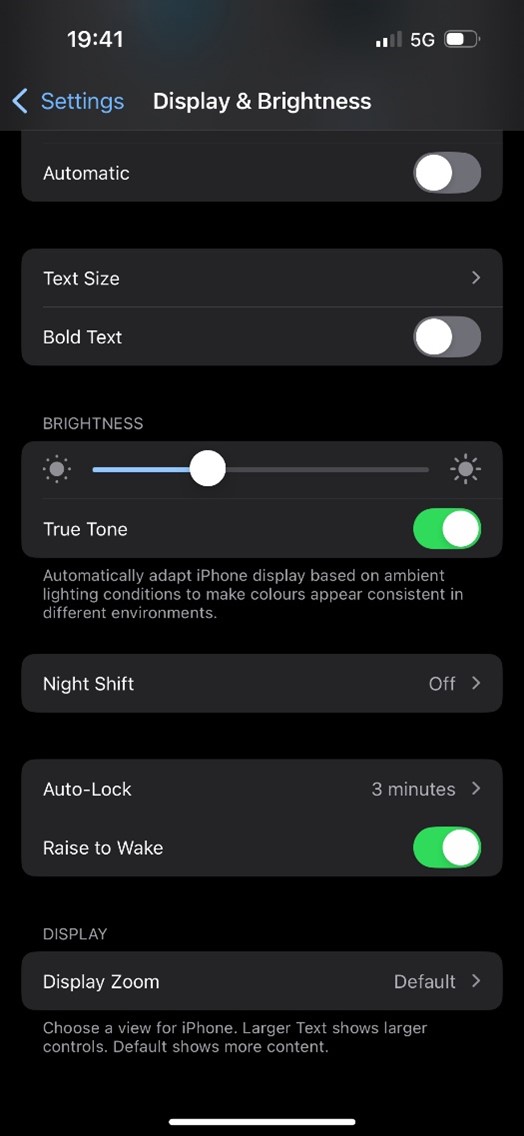
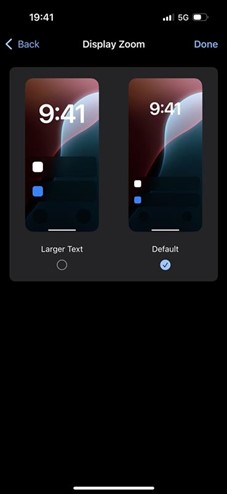
Important:
- Your device will restart when you change this setting.
- If you are on a call with one of our contact centre agents, the call will disconnect.
- You may temporarily lose network connectivity.
- You should fully close the Bank of Ireland app before making this change. You will need to log in again afterward.
Step 2: Enable biometrics for future SCA approvals
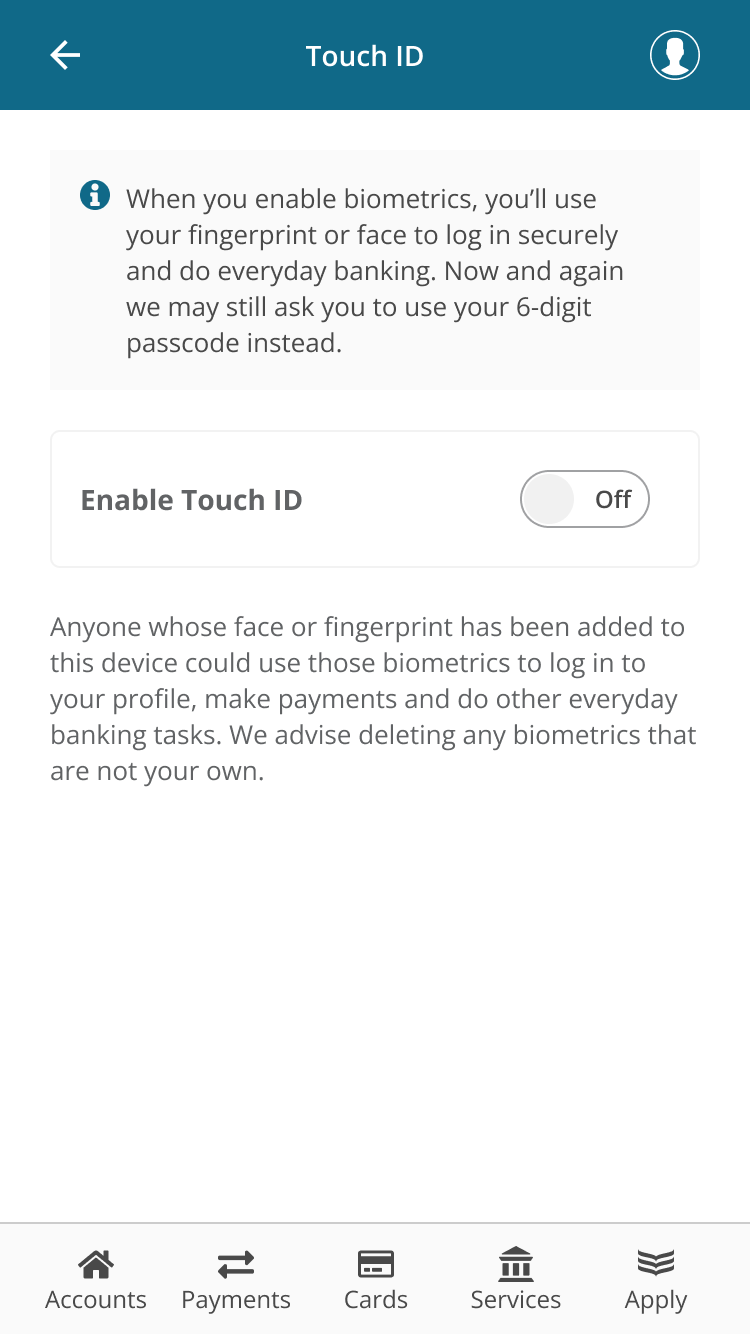
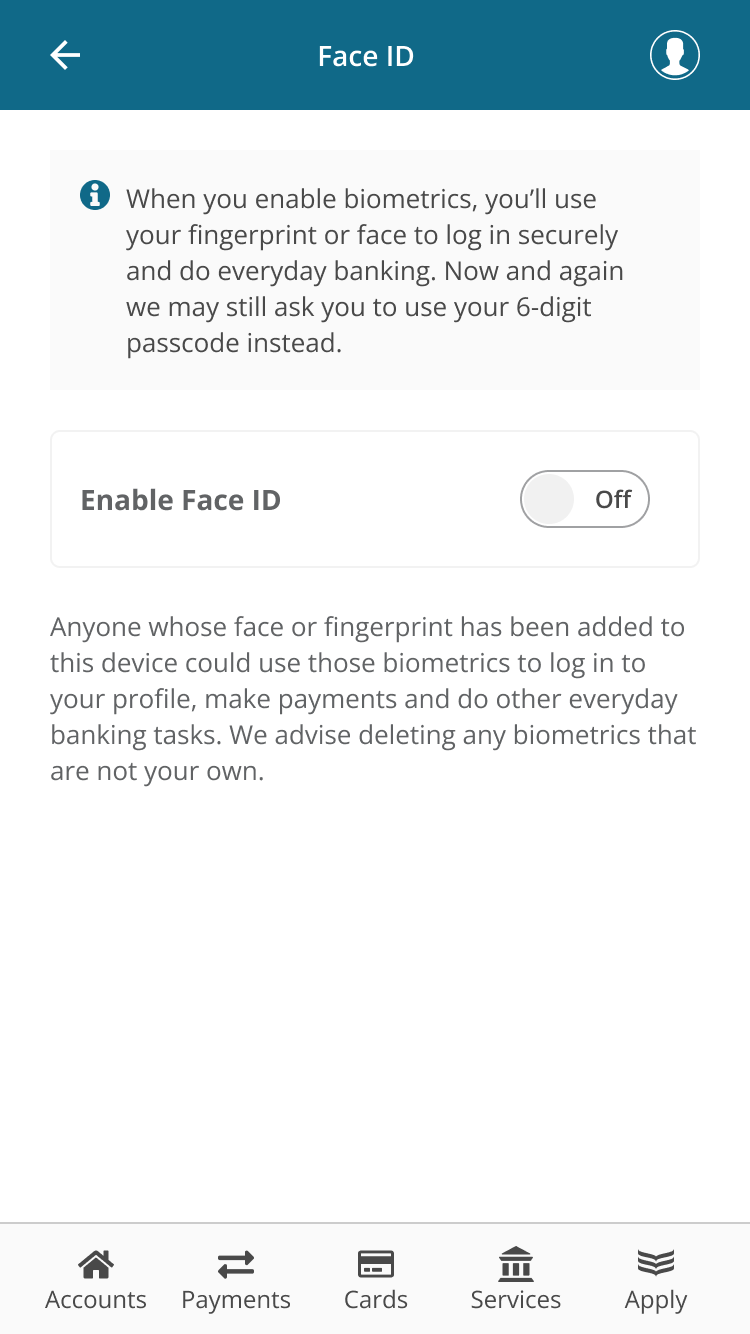
Once you have changed the display settings, we recommend enabling biometrics (Face ID or Touch ID) so you will not need to use your passcode for SCA in future.
To enable biometrics:
- Log in to the Bank of Ireland app
- Go to Profile
- Select Biometrics and passcode
- Choose Touch ID or Face ID
- Turn On
- Complete the approval to finish setting it up
From now on, when your approval is required, Face ID or Touch ID will be used instead of your passcode.
If you continue to experience issues, please contact our support team and we’ll be happy to help.
Restoring your Display Zoom settings
Once you have enabled Touch ID or Face ID on your Apple device, you can then go back to the settings on your phone and restore the setting to Larger Text, if required. Follow Step 1 above to do this, choosing Larger Text instead of Default.