Set up my Physical Security Key (PSK)
Before you can use your PSK, follow the steps below to set it up. You’ll need your 365 user ID and 365 PIN for this. (Tap the link for help to find your user ID or 365 PIN.)
- Turn on PSK using the green OK button (under the number 9 key).
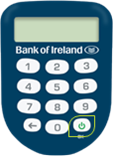
- Enter 1254.
When asked to create a New PIN, type in a unique four-digit PIN that you will remember and press the green OK button. This will be your new PSK PIN.
Tips for choosing a secure PSK PIN:
- Make it hard for others to guess
- Never write your PIN down
- Never use numbers in order (like 1234)
- Never use repeated numbers (like 1111)
- Never tell anyone your PIN.
- When asked, enter your new PSK PIN again, and press the green OK button.
- Now, go to 365online.com in your web browser and log in. You will need your PSK to hand. You’ll also need to enter the last four digits of the serial number on the back of your PSK.

- Once you have entered the last four digits of the serial number, select Activate on screen. Next, select Continue to login.
Please note: Once you have set up your PSK you should only use the new PIN you created. If you enter any other PIN it will present an ‘ERROR’ message. If this happens, try again using the PIN you created.
You have a limit of 5 attempts to enter your PSK PIN. After this, your PSK will be blocked and you will need to request a new one.
If you get a persistent error message using the PIN you set, call us on the most suitable number below.
Republic of Ireland:
- 0818 365 365 or 01 404 4000
- +353 1 404 4000 (from anywhere else)
We’re open:
- Monday to Friday 9am to 8pm
- Saturday 10am to 6pm
- Bank holidays 9am to 5pm
- Closed Sunday.
Northern Ireland and Great Britain:
- 0345 736 5555
- +44 345 736 5555 (from anywhere else)
We’re open:
- Monday to Friday 9am to 5pm
- Saturday 9am to 2pm
- Bank holidays 9am to 2pm
- Closed Sunday.